> ## Documentation Index
> Fetch the complete documentation index at: https://docs.mindset.ai/llms.txt
> Use this file to discover all available pages before exploring further.
# Create a Voice Interaction
> Build a spoken roleplay in the Agent Management Studio, test it, publish it, and assign it to an agent.
This guide takes you through building a Voice Interaction, testing it with your own voice, publishing it, and assigning it to an agent. A Voice Interaction lets someone have a spoken conversation with an agent that plays a role, such as a tough customer, an interviewer, or a coach. You describe the role and the situation in plain English, and the Interaction Builder turns it into a working interaction you can reuse.
## Before you start
You connect your own voice provider using your own API key. Mindset AI supports ElevenLabs and Deepgram. If you don't have an account with either, you can sign up for a free trial and use that key.
You can start building and save a draft without a key. You will need a connected provider before you can pick a voice or publish. Voice Interactions are supported in English only.
## Open Voice Interactions
From the Agent Management Studio (AMS) dashboard, select Voice Interactions in the left-hand menu.
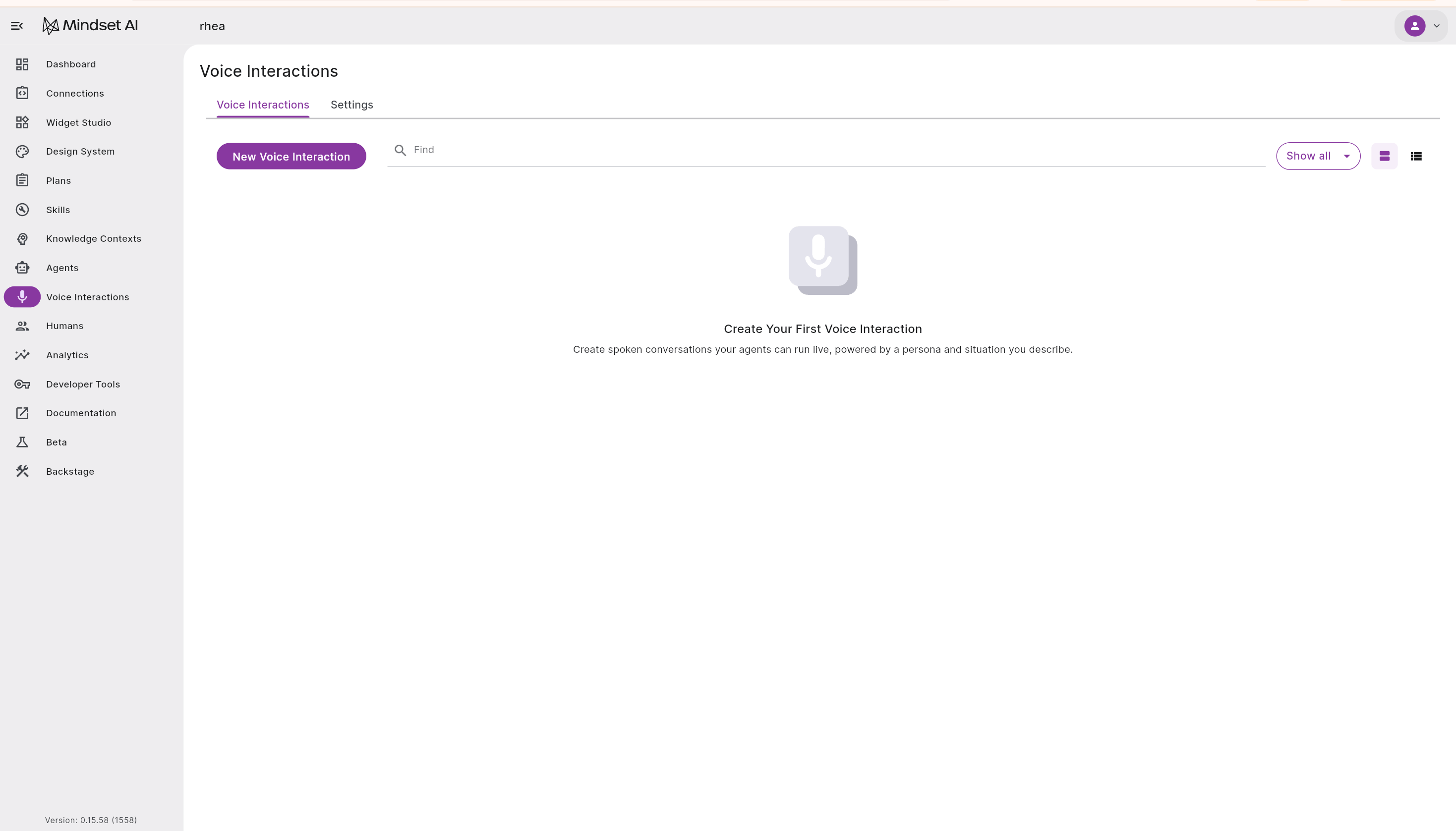 The page lists any interactions you have already created, each marked Published or Draft. Select New Voice Interaction to start a new one.
## Connect a voice provider
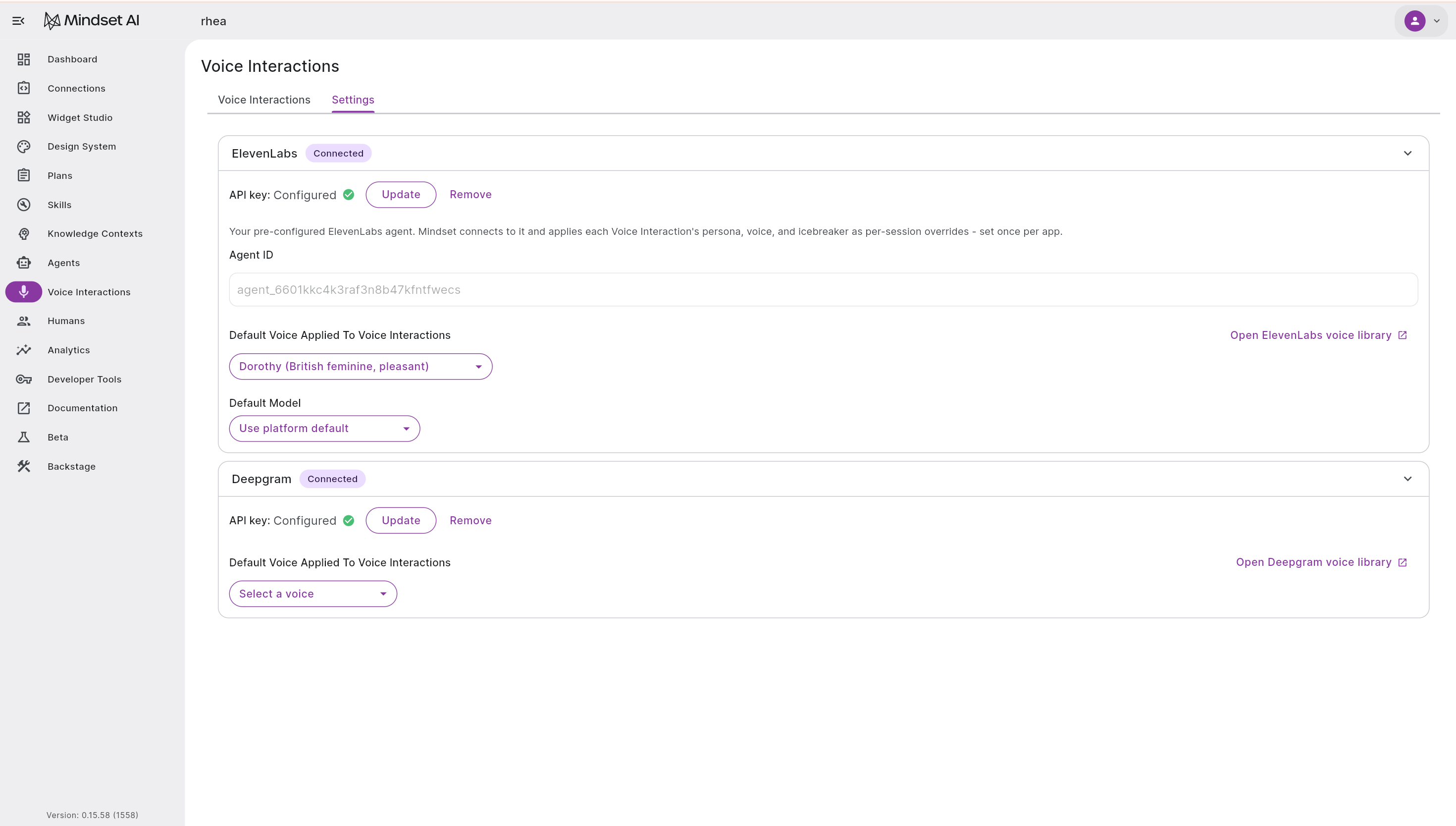
Inside Voice Interactions, open Settings and expand ElevenLabs or Deepgram. Paste in your API key and save. Mindset AI checks the key when you save it, and you can set a default voice and model to use across your interactions.
You can connect more than one provider. Each interaction can have its own provider and voice, so you are not tied to a single choice across the account.
The page lists any interactions you have already created, each marked Published or Draft. Select New Voice Interaction to start a new one.
## Connect a voice provider
Inside Voice Interactions, open Settings and expand ElevenLabs or Deepgram. Paste in your API key and save. Mindset AI checks the key when you save it, and you can set a default voice and model to use across your interactions.
You can connect more than one provider. Each interaction can have its own provider and voice, so you are not tied to a single choice across the account.
 ## Build your interaction
The editor has two halves: a chat with the Interaction Builder on the left, and your interaction's details on the right, with a live voice card above a short form.
## Build your interaction
The editor has two halves: a chat with the Interaction Builder on the left, and your interaction's details on the right, with a live voice card above a short form.
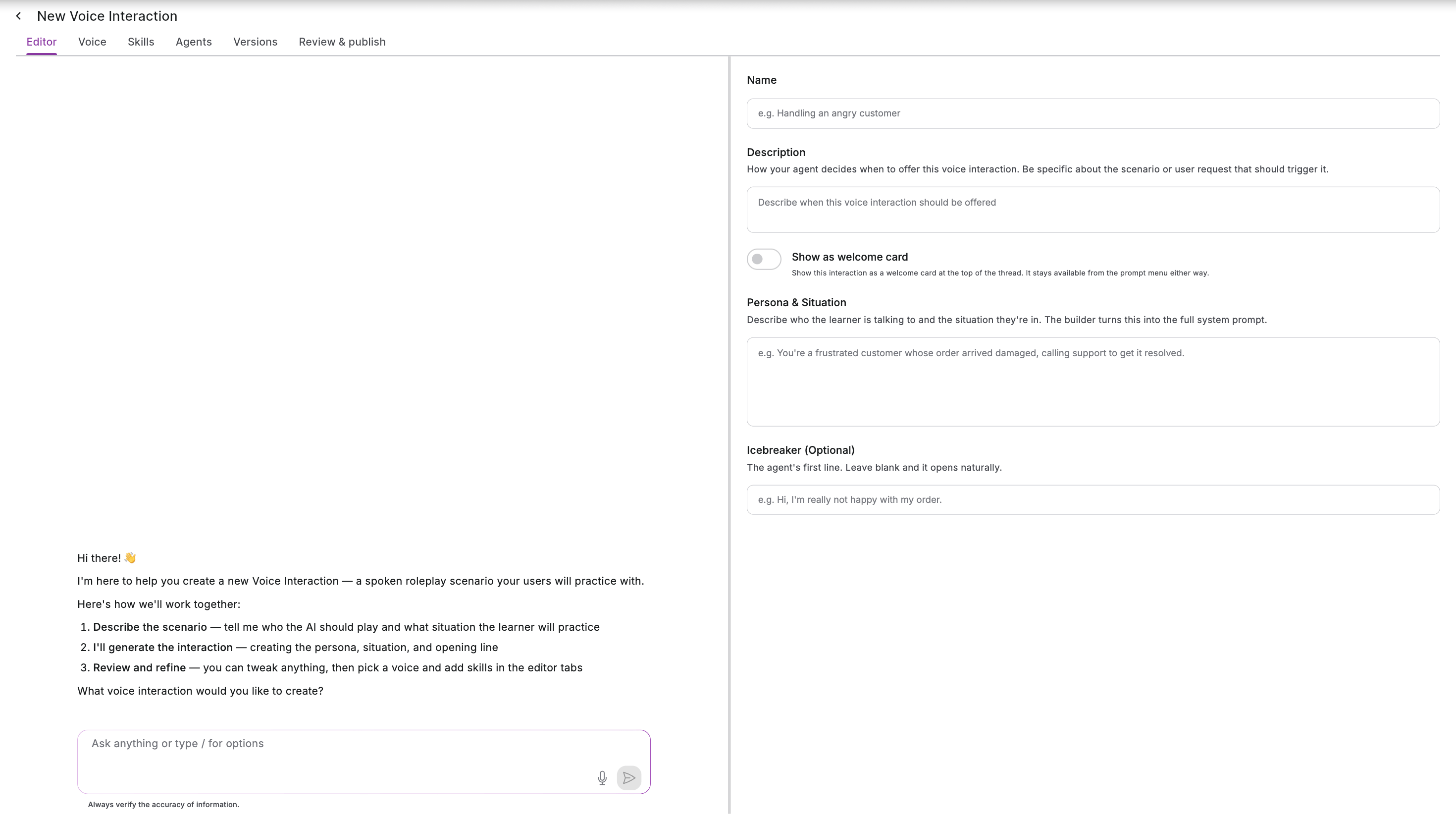 Tell the Interaction Builder who the agent should play and what the situation is. For example, "You are an angry customer whose order arrived broken for the second time, and you want a refund, not an apology." It writes the full setup from that description. Keep chatting to adjust it, such as "calm down if the learner apologizes sincerely," and it updates the interaction as you go.
## Fill in the details
If you built the interaction with the Interaction Builder, most of these are already filled in, so review and adjust them.
**Name.** A clear name for the interaction, such as "Handle an angry customer." Renaming an interaction does not create a new version.
**Persona & Situation.** The description of who the agent plays and the scenario it is in. Write it the way you would brief a colleague before a roleplay. This description is what drives the whole conversation.
**Icebreaker (optional).** The agent's opening line. Leave it blank and the agent opens the conversation itself.
**Voice.** Pick a voice from your connected provider. You audition voices on the provider's own dashboard, such as the ElevenLabs voice library, and match the one you want by name.
**Skills (optional).** Open the Skills tab to attach one or more Skills. A Skill gives the agent extra knowledge to draw on during the conversation, such as your returns policy or product details. See [Create a Skill](/build-optimize/AMS/create-a-skill) for more.
## Try it live
You don't need to leave the editor to test. On the Editor tab, the interaction's own voice card sits at the top of the right-hand side. Select Start conversation and have the conversation yourself, out loud, exactly as one of your users would.
Test conversations run on your connected provider key and count toward your usage with that provider. There is no separate sandbox, so a test call uses your quota the same way a real one does. Sessions have a default limit of 10 minutes.
## Publish
You can publish once these four things are in place:
1. A voice provider is connected in Settings.
2. The interaction has a Name.
3. The Persona & Situation is filled in.
4. A voice provider is selected on the interaction.
Tell the Interaction Builder who the agent should play and what the situation is. For example, "You are an angry customer whose order arrived broken for the second time, and you want a refund, not an apology." It writes the full setup from that description. Keep chatting to adjust it, such as "calm down if the learner apologizes sincerely," and it updates the interaction as you go.
## Fill in the details
If you built the interaction with the Interaction Builder, most of these are already filled in, so review and adjust them.
**Name.** A clear name for the interaction, such as "Handle an angry customer." Renaming an interaction does not create a new version.
**Persona & Situation.** The description of who the agent plays and the scenario it is in. Write it the way you would brief a colleague before a roleplay. This description is what drives the whole conversation.
**Icebreaker (optional).** The agent's opening line. Leave it blank and the agent opens the conversation itself.
**Voice.** Pick a voice from your connected provider. You audition voices on the provider's own dashboard, such as the ElevenLabs voice library, and match the one you want by name.
**Skills (optional).** Open the Skills tab to attach one or more Skills. A Skill gives the agent extra knowledge to draw on during the conversation, such as your returns policy or product details. See [Create a Skill](/build-optimize/AMS/create-a-skill) for more.
## Try it live
You don't need to leave the editor to test. On the Editor tab, the interaction's own voice card sits at the top of the right-hand side. Select Start conversation and have the conversation yourself, out loud, exactly as one of your users would.
Test conversations run on your connected provider key and count toward your usage with that provider. There is no separate sandbox, so a test call uses your quota the same way a real one does. Sessions have a default limit of 10 minutes.
## Publish
You can publish once these four things are in place:
1. A voice provider is connected in Settings.
2. The interaction has a Name.
3. The Persona & Situation is filled in.
4. A voice provider is selected on the interaction.
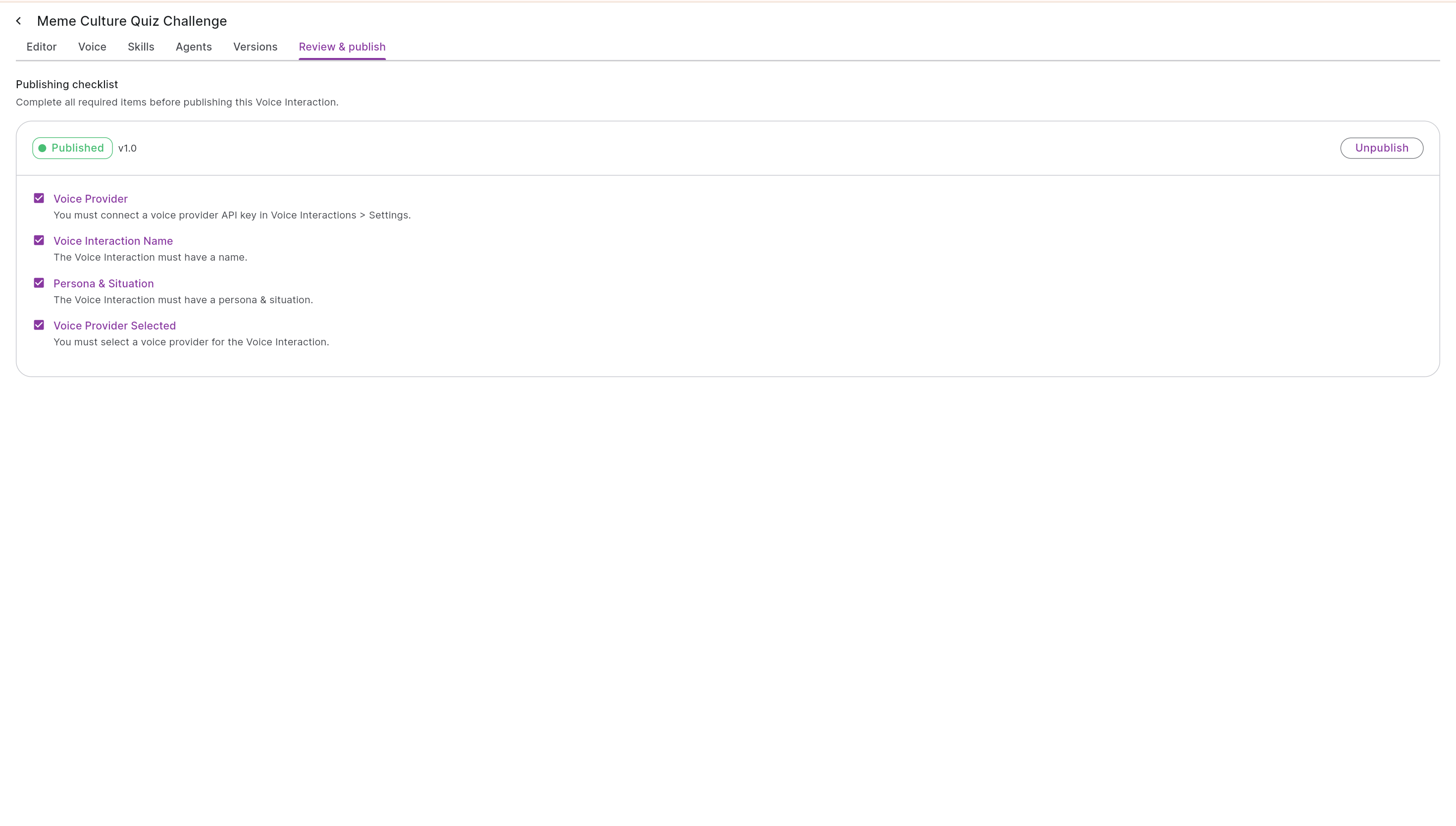 Once published, the interaction is live and ready to assign to an agent.
## Keep earlier versions
Voice Interactions are versioned, so you can keep improving one without losing earlier work. A new version is created whenever you change the voice, the Persona & Situation, the icebreaker, or the attached Skills. Renaming does not create a version.
Open the Versions tab to see each version next to the prompt that produced it. You can preview an earlier version or set it as the working version.
## Assign it to an agent
A Voice Interaction is something you give to an agent. You can attach it from the interaction's own Agents tab, or from the Voice Interactions tab in an agent's configuration. Both do the same thing.
Once an agent has the interaction, it can use it in three ways:
* **In conversation.** The agent offers it when it fits, for example "Want to practice that? Let's role-play it," and it appears in the prompt menu.
* **As a welcome card.** Turn on Show as a welcome card and the interaction appears at the top of the chat, using its icebreaker as the message, so someone can drop straight into a practice session.
* **In a Plan.** A Plan step can call the interaction at the right moment, the same way a step refers to a tool.
## What your end users experience
Your user has the spoken conversation, whether that is a roleplay, a coaching session, or a mock interview. When it ends, the transcript passes back to the agent, which picks the conversation up in chat and gives feedback based on how it went. The practice and the feedback happen in one continuous thread.
## Next steps
Give your interaction extra knowledge to draw on during the conversation.
Call a Voice Interaction at a specific step in a guided flow.
Once published, the interaction is live and ready to assign to an agent.
## Keep earlier versions
Voice Interactions are versioned, so you can keep improving one without losing earlier work. A new version is created whenever you change the voice, the Persona & Situation, the icebreaker, or the attached Skills. Renaming does not create a version.
Open the Versions tab to see each version next to the prompt that produced it. You can preview an earlier version or set it as the working version.
## Assign it to an agent
A Voice Interaction is something you give to an agent. You can attach it from the interaction's own Agents tab, or from the Voice Interactions tab in an agent's configuration. Both do the same thing.
Once an agent has the interaction, it can use it in three ways:
* **In conversation.** The agent offers it when it fits, for example "Want to practice that? Let's role-play it," and it appears in the prompt menu.
* **As a welcome card.** Turn on Show as a welcome card and the interaction appears at the top of the chat, using its icebreaker as the message, so someone can drop straight into a practice session.
* **In a Plan.** A Plan step can call the interaction at the right moment, the same way a step refers to a tool.
## What your end users experience
Your user has the spoken conversation, whether that is a roleplay, a coaching session, or a mock interview. When it ends, the transcript passes back to the agent, which picks the conversation up in chat and gives feedback based on how it went. The practice and the feedback happen in one continuous thread.
## Next steps
Give your interaction extra knowledge to draw on during the conversation.
Call a Voice Interaction at a specific step in a guided flow.