> ## Documentation Index
> Fetch the complete documentation index at: https://docs.mindset.ai/llms.txt
> Use this file to discover all available pages before exploring further.
# Setting Up MCP Servers in the Agent Management Studio
> Learn how to configure and manage MCP servers in the Mindset AI Agent Management Studio
## Overview of the AMS Dashboard
When you log into the Mindset AI Agent Management Studio, you will see the main dashboard, which includes the following components:
* Agents
* Knowledge Contexts
* MCP Servers
* Workflows
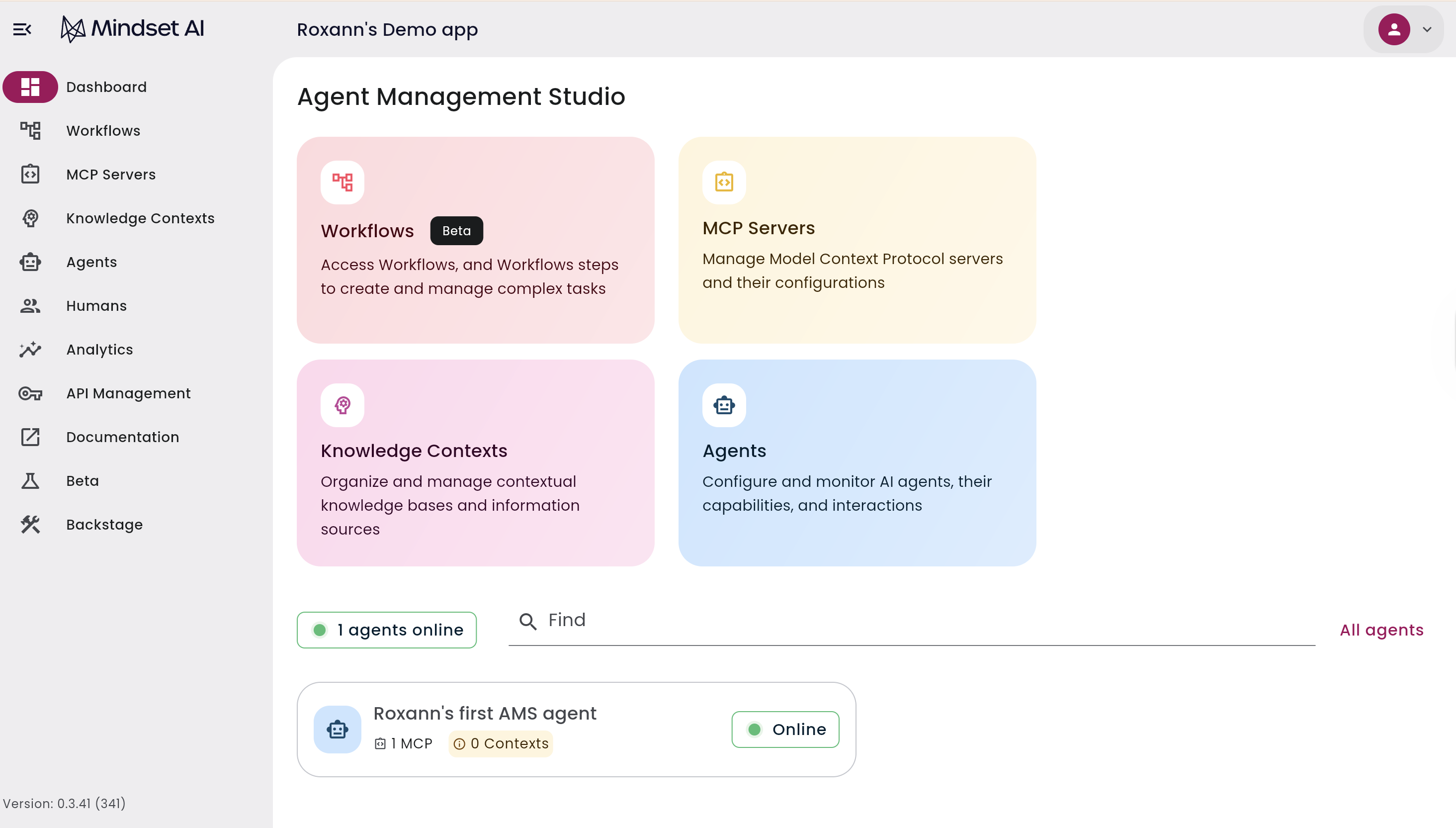 To begin, go to MCP Servers.
## Native MCP Servers
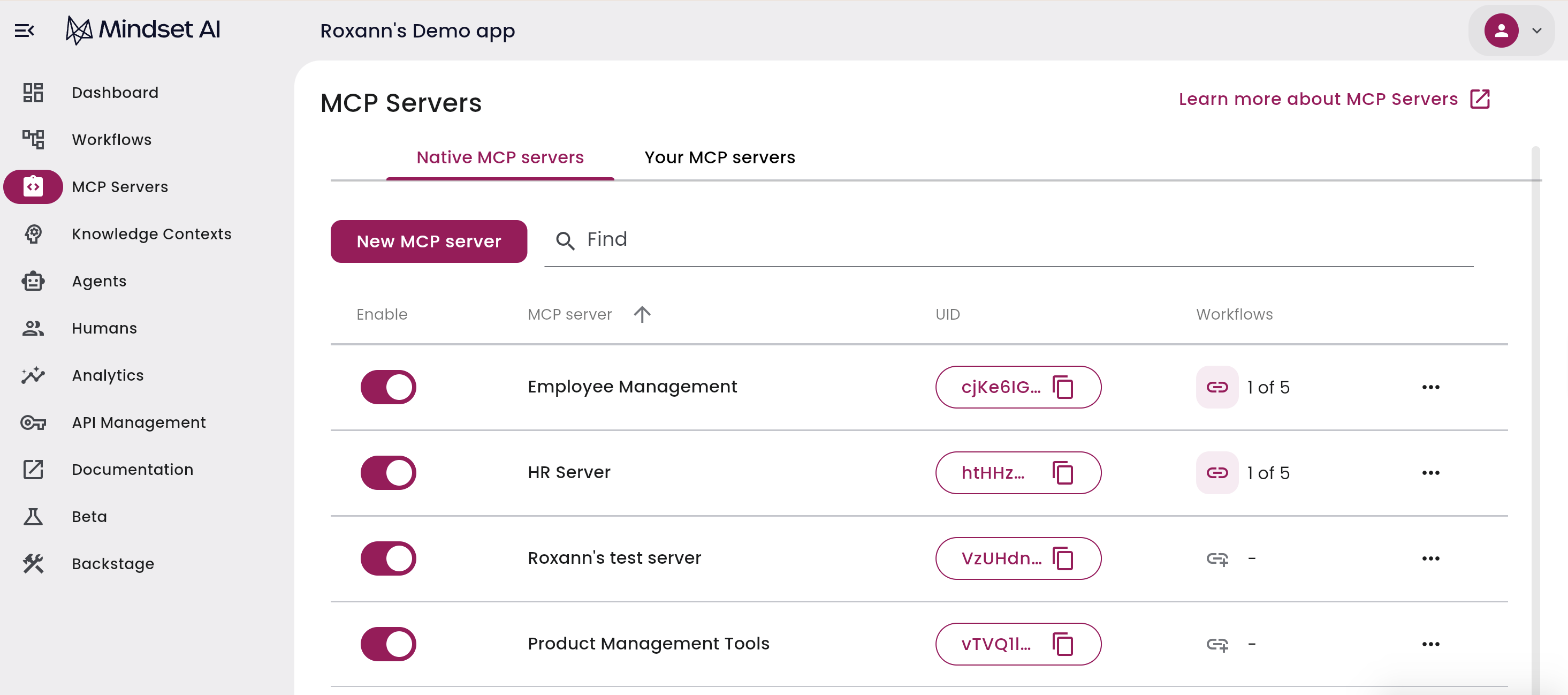
The first tab is **Native MCP Servers**.
These are MCP servers managed by Mindset AI that wrap your workflows. They make the workflows you have created in the platform available to your agents. This is how your internal Mindset AI workflows are exposed as tools for agents.
To begin, go to MCP Servers.
## Native MCP Servers
The first tab is **Native MCP Servers**.
These are MCP servers managed by Mindset AI that wrap your workflows. They make the workflows you have created in the platform available to your agents. This is how your internal Mindset AI workflows are exposed as tools for agents.
 ## Your MCP Servers
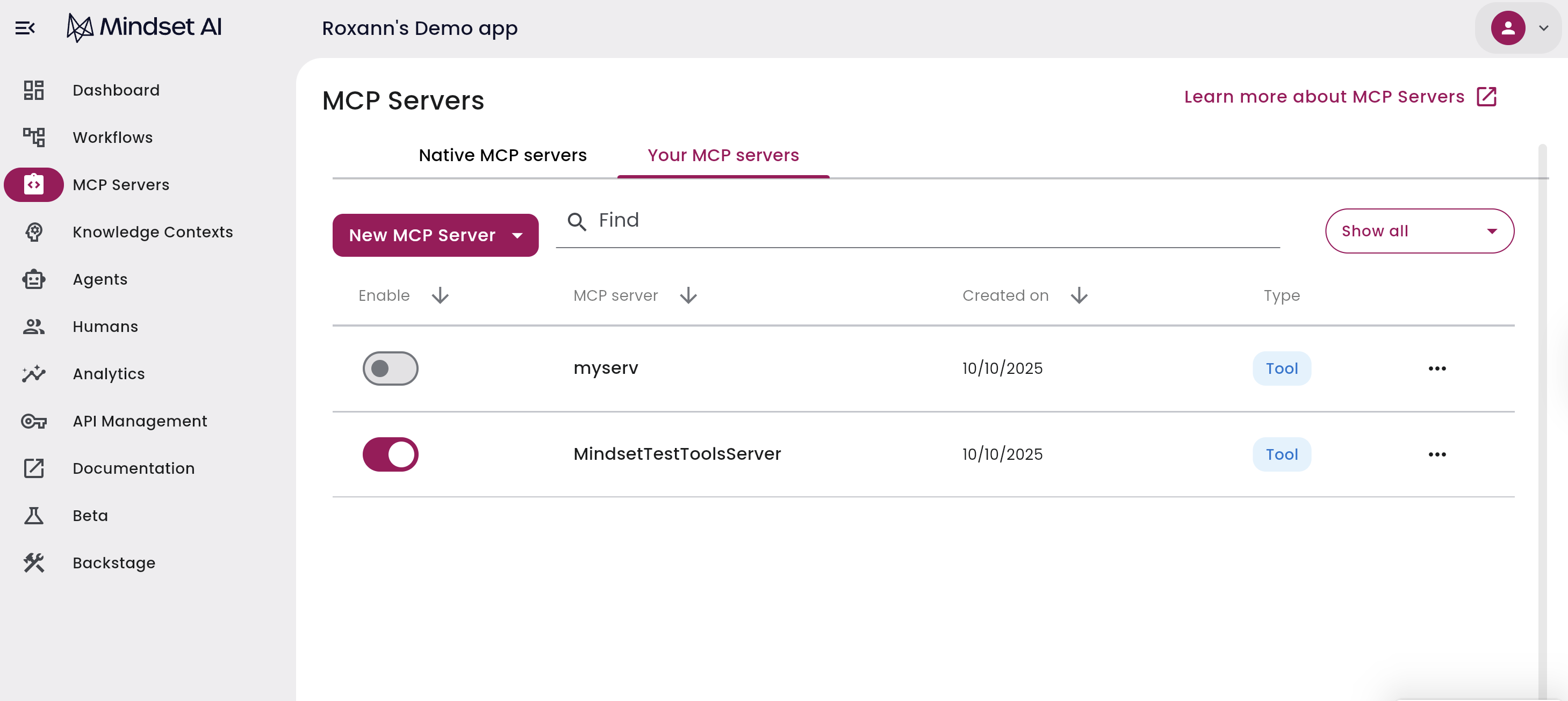
Next, select the **Your MCP Servers** tab.
This section contains client-hosted MCP servers. Everything in these servers, including APIs, tools, and hosting, remains entirely on your infrastructure. The Mindset AI platform connects to these servers through AMS so that your agents can use them.
## Your MCP Servers
Next, select the **Your MCP Servers** tab.
This section contains client-hosted MCP servers. Everything in these servers, including APIs, tools, and hosting, remains entirely on your infrastructure. The Mindset AI platform connects to these servers through AMS so that your agents can use them.
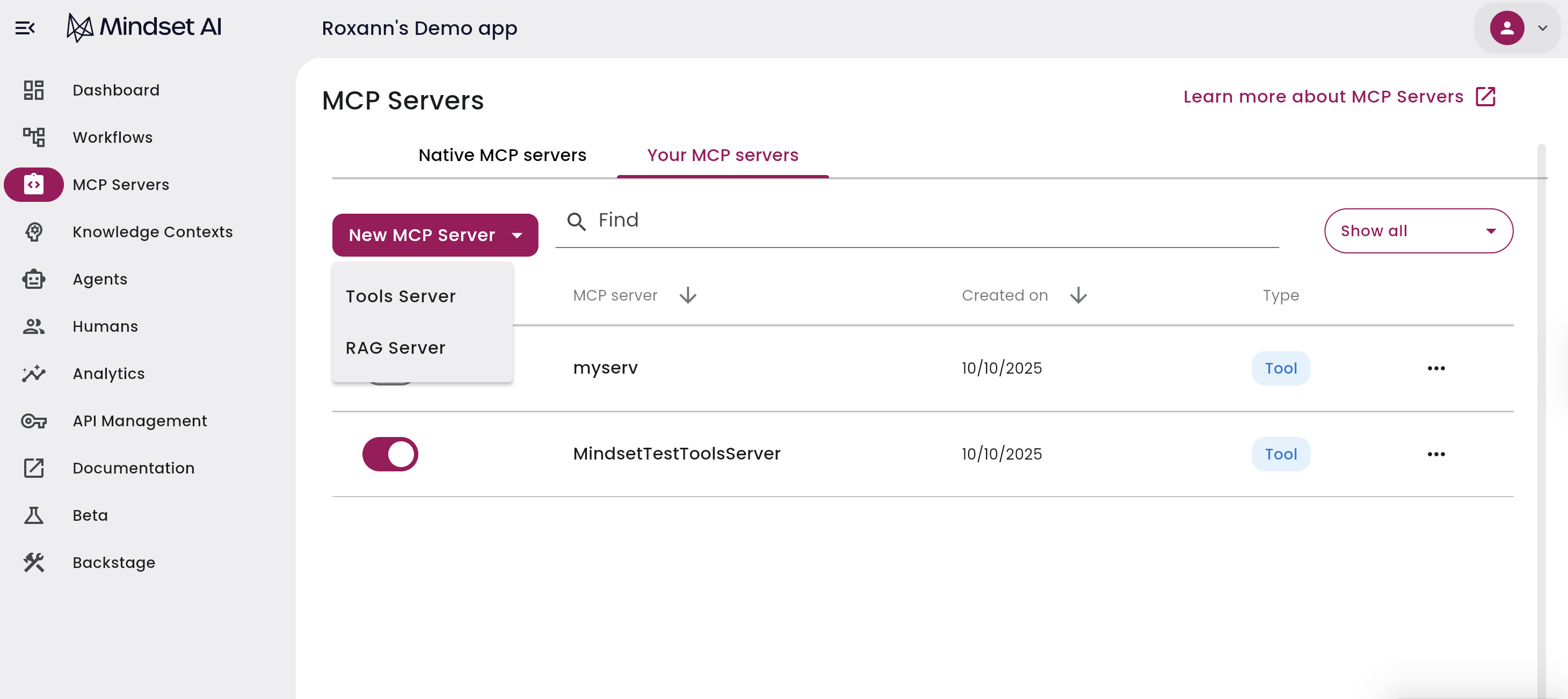
 There are two types of MCP servers you can create:
1. Tools MCP Server
2. RAG MCP Server
There are two types of MCP servers you can create:
1. Tools MCP Server
2. RAG MCP Server
 ### 1. Tools MCP Server
The Tools MCP Server allows you to host your own MCP with your custom tools and APIs.
This is usually the main server type for customers because it enables Mindset AI agents to perform actions in your environment through your APIs, without Mindset AI needing to host or modify your code.
**Benefits:**
* Keeps your customer-specific code separate from the Mindset AI platform
* Gives you full control over which tools your agents can use
* Lets agents access your APIs securely within your environment
#### Creating a Tools MCP Server
In your MCP Servers, click **New MCP Server**. Choose **Tools Server** from the dropdown.
Enter:
* Server name
* MCP server URL
* Description of what the MCP does
### 1. Tools MCP Server
The Tools MCP Server allows you to host your own MCP with your custom tools and APIs.
This is usually the main server type for customers because it enables Mindset AI agents to perform actions in your environment through your APIs, without Mindset AI needing to host or modify your code.
**Benefits:**
* Keeps your customer-specific code separate from the Mindset AI platform
* Gives you full control over which tools your agents can use
* Lets agents access your APIs securely within your environment
#### Creating a Tools MCP Server
In your MCP Servers, click **New MCP Server**. Choose **Tools Server** from the dropdown.
Enter:
* Server name
* MCP server URL
* Description of what the MCP does
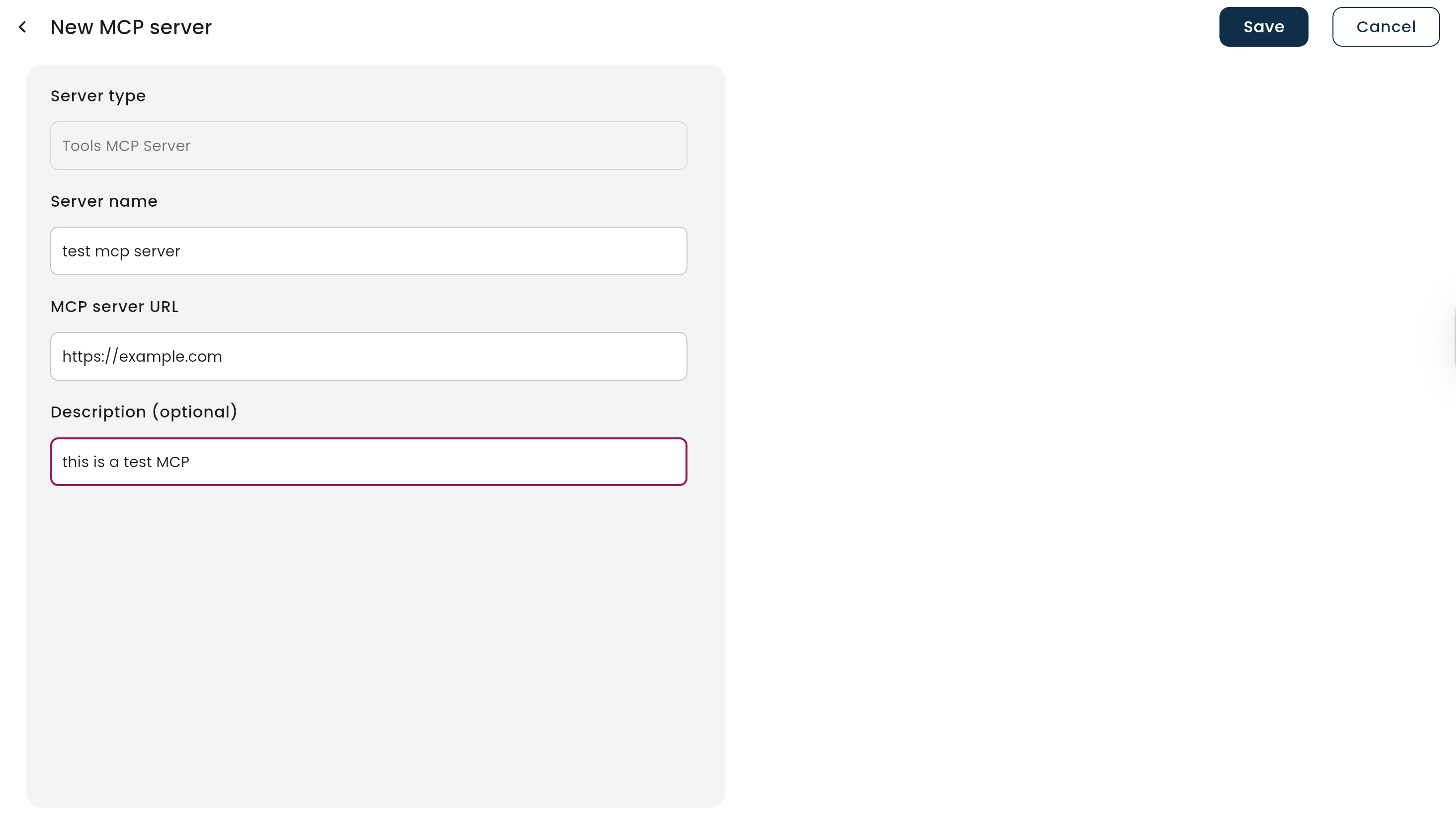 Click **Save**
Enter your API key and click **Test Server Connection** to verify communication between Mindset AI and your hosted MCP.
Click **Save**
Enter your API key and click **Test Server Connection** to verify communication between Mindset AI and your hosted MCP.
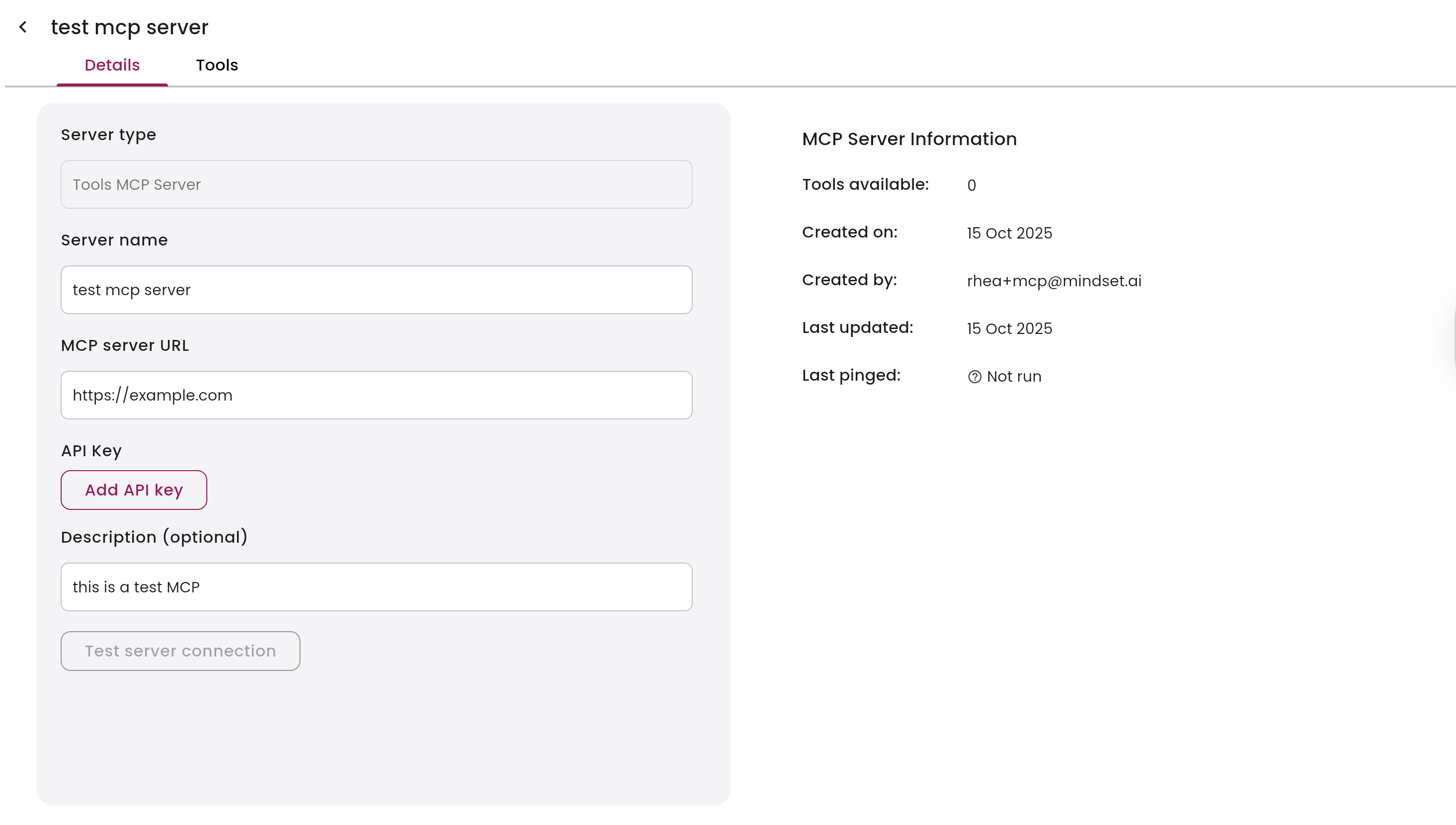
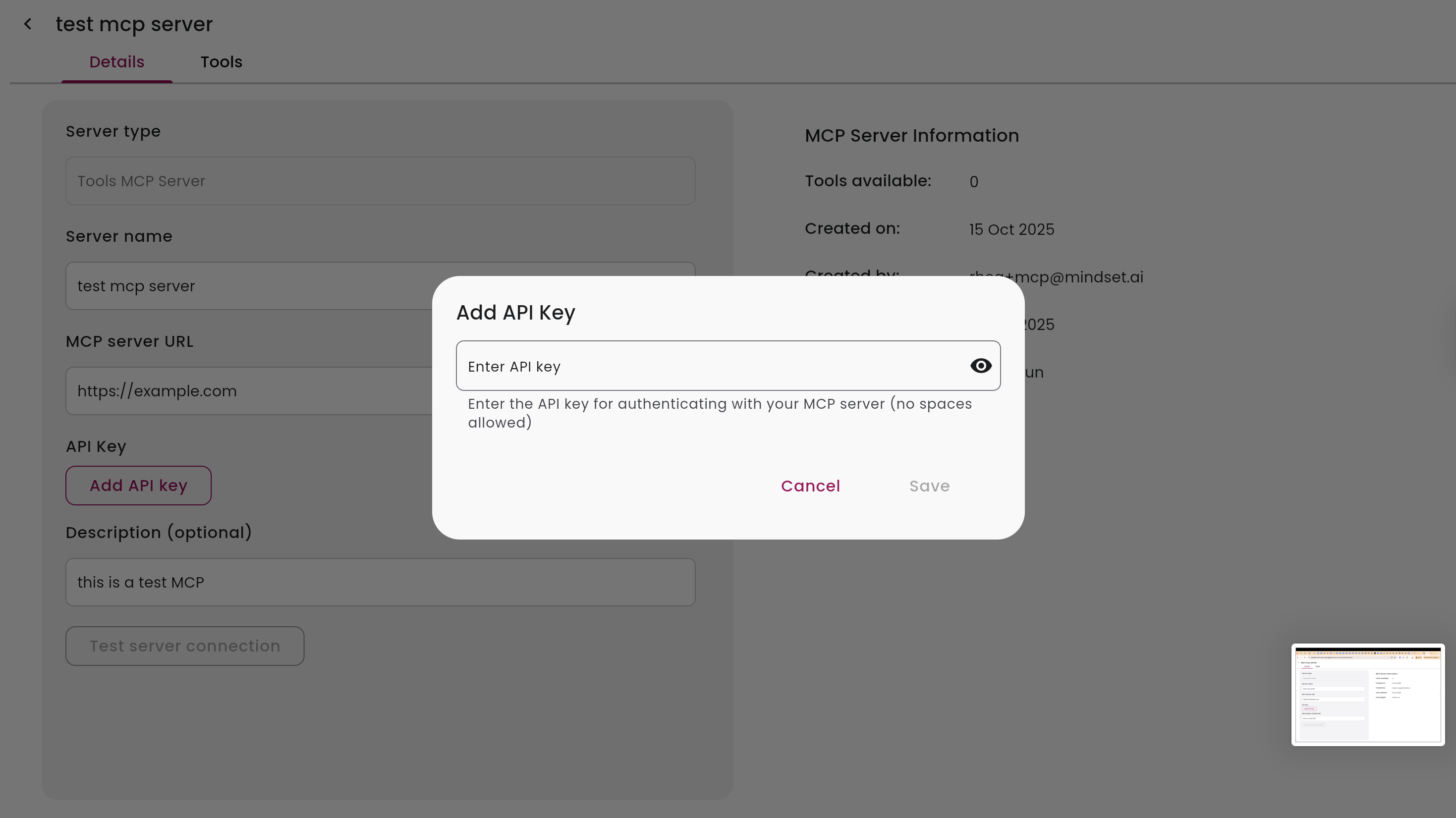
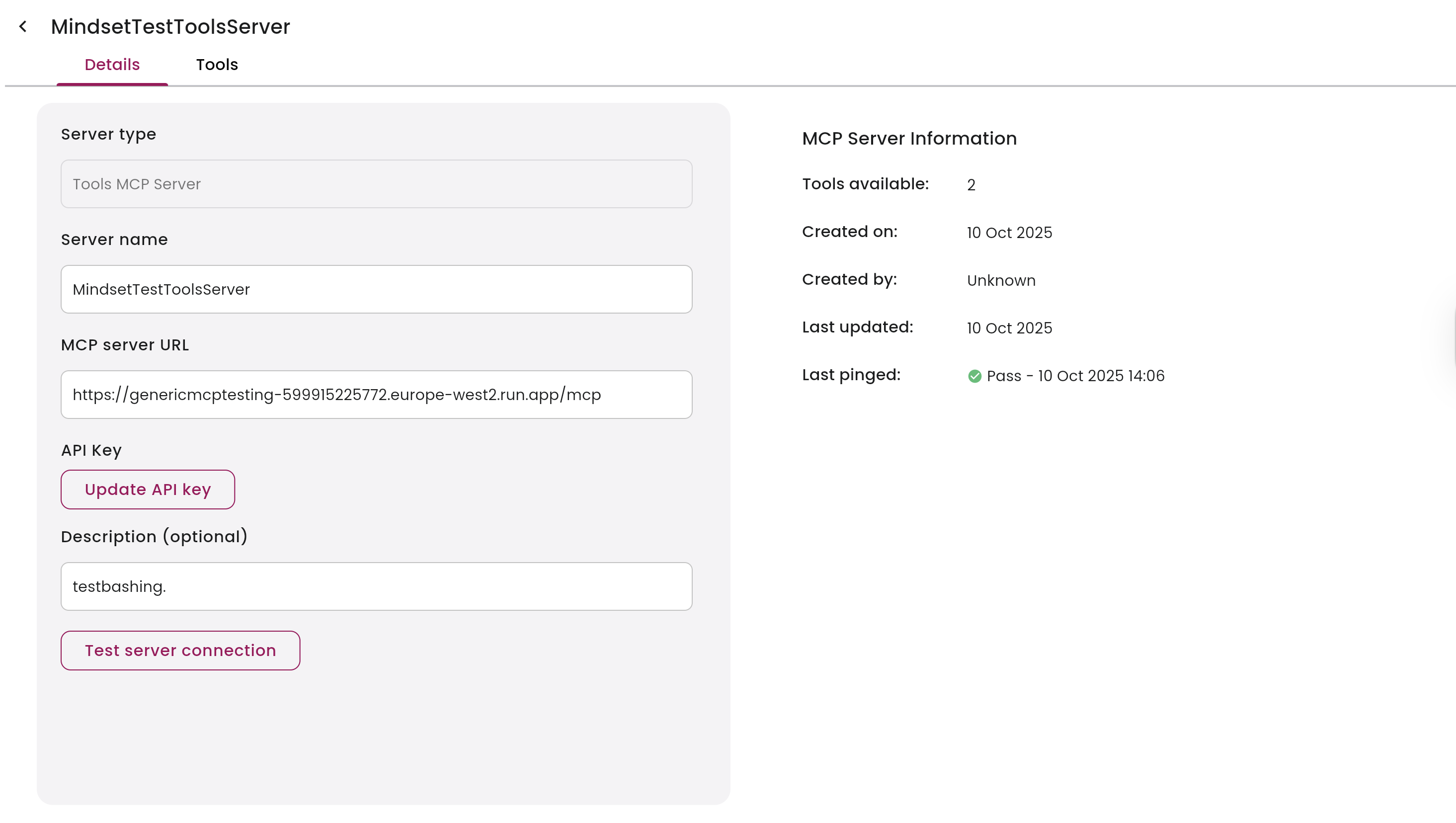 All tools and APIs remain hosted by you, the customer. Mindset AI does not store, manage, or execute your code. The connection only enables your agents to access your tools securely through AMS.
### 2. RAG MCP Server
The RAG MCP Server lets you host your own Retrieval-Augmented Generation (RAG) system.
This option is best for customers who want to keep their knowledge data private, without uploading documents to Mindset AI. When connected, your Mindset AI agents query your RAG system directly for contextual information.
**Benefits:**
* Keeps proprietary knowledge in your infrastructure
* Gives you full control over source documents and retrieval logic
* Enables a secure integration with Mindset AI agents
**Implementation Details:**
* When an agent is connected to a RAG MCP Server, Mindset AI Knowledge Contexts are ignored
* You must provide URLs for source documents so users can view the source data
* Segments are still stored in the conversation history within Mindset AI
#### Creating a RAG MCP Server
In your MCP Servers, click **New MCP Server**.
Select **RAG MCP** from the dropdown.
Provide:
* Name of your RAG MCP
* External link (the endpoint for your RAG system)
* Description of what it does
All tools and APIs remain hosted by you, the customer. Mindset AI does not store, manage, or execute your code. The connection only enables your agents to access your tools securely through AMS.
### 2. RAG MCP Server
The RAG MCP Server lets you host your own Retrieval-Augmented Generation (RAG) system.
This option is best for customers who want to keep their knowledge data private, without uploading documents to Mindset AI. When connected, your Mindset AI agents query your RAG system directly for contextual information.
**Benefits:**
* Keeps proprietary knowledge in your infrastructure
* Gives you full control over source documents and retrieval logic
* Enables a secure integration with Mindset AI agents
**Implementation Details:**
* When an agent is connected to a RAG MCP Server, Mindset AI Knowledge Contexts are ignored
* You must provide URLs for source documents so users can view the source data
* Segments are still stored in the conversation history within Mindset AI
#### Creating a RAG MCP Server
In your MCP Servers, click **New MCP Server**.
Select **RAG MCP** from the dropdown.
Provide:
* Name of your RAG MCP
* External link (the endpoint for your RAG system)
* Description of what it does
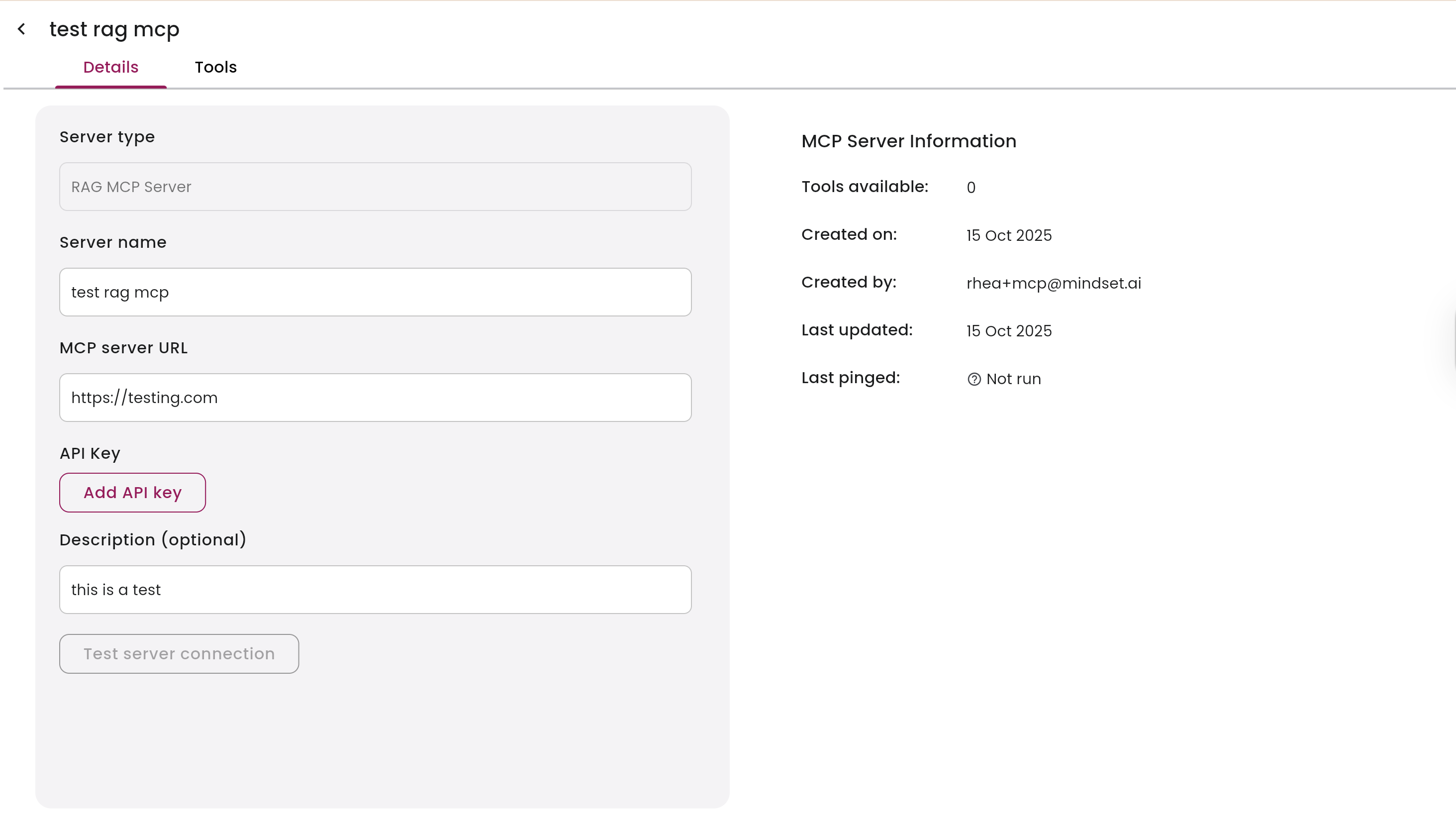 Click **Save** and add your API key if required.
Test the connection to confirm your RAG system is reachable.
## Limitations
The RAG MCP Server can only be tested and paired with an agent through the agentSessions mechanism. To test it, you must embed your agent. The Tools MCP Server, on the other hand, can be added and tested directly within AMS without embedding.
Click **Save** and add your API key if required.
Test the connection to confirm your RAG system is reachable.
## Limitations
The RAG MCP Server can only be tested and paired with an agent through the agentSessions mechanism. To test it, you must embed your agent. The Tools MCP Server, on the other hand, can be added and tested directly within AMS without embedding.