> ## Documentation Index
> Fetch the complete documentation index at: https://docs.mindset.ai/llms.txt
> Use this file to discover all available pages before exploring further.
# Embedding an Agent
> Global overview on how to embed an Agent into your website
## Introduction
Mindset provides Embed SDK to embed the AI agents Component into your web application or portal. This documentation provides the technical instructions and important points in order achieve that.
Before embedding an agent, you need to create the agent and set it up.
There are 2 ways to create an agent:
* Through the App administration portal: (see [Creating Agents from the portal](/guides-templates/guides/agents/howto-create-agents))
* Using the [Agents API](/sdk-api/api/agents-api)
You may then probably need to create `Contexts` and upload source files (PDF, Video, Doc, ...) called `Context Files`.
There are 2 ways to do that:
* Through the App administration portal: (see [Knowledge contexts](/guides-templates/guides/knowledge/knowledge))
* Using the [Contexts API](/sdk-api/api/contexts-api) and [ContextFiles API](/sdk-api/api/contexts-api)
Finally, you may have to give your agent access to the created `Contexts`, given your own users and tenants roles and permissions system.
* Read more about [Agent and Knowledge Context Provisioning](/sdk-api/sdk/agent-and-knowledge-context-provisioning)
## Embedding the AI Agent
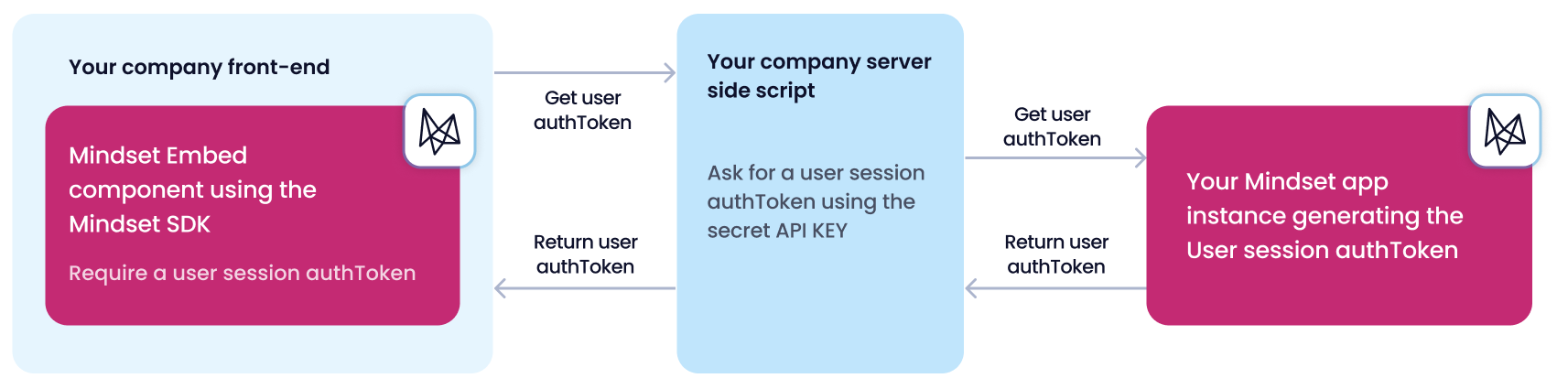
Regardless of whether your agent uses [authenticated or anonymous access](/amp/Deployment), there is one [**Front-end** ](/sdk-api/sdk/front-end) script to integrate.
In the case that your agent uses the **authenticated access** (default mode), there is an additional [**Back-end authentication** ](/sdk-api/sdk/back-end) script to integrate, which is in charge of getting an **authentication token** from the Mindset system.
 In the case that your agent uses the **anonymous access**, there is no need for any back-end script, but you will have to whitelist URLs in your Agent Management Studio.