

Open Skills
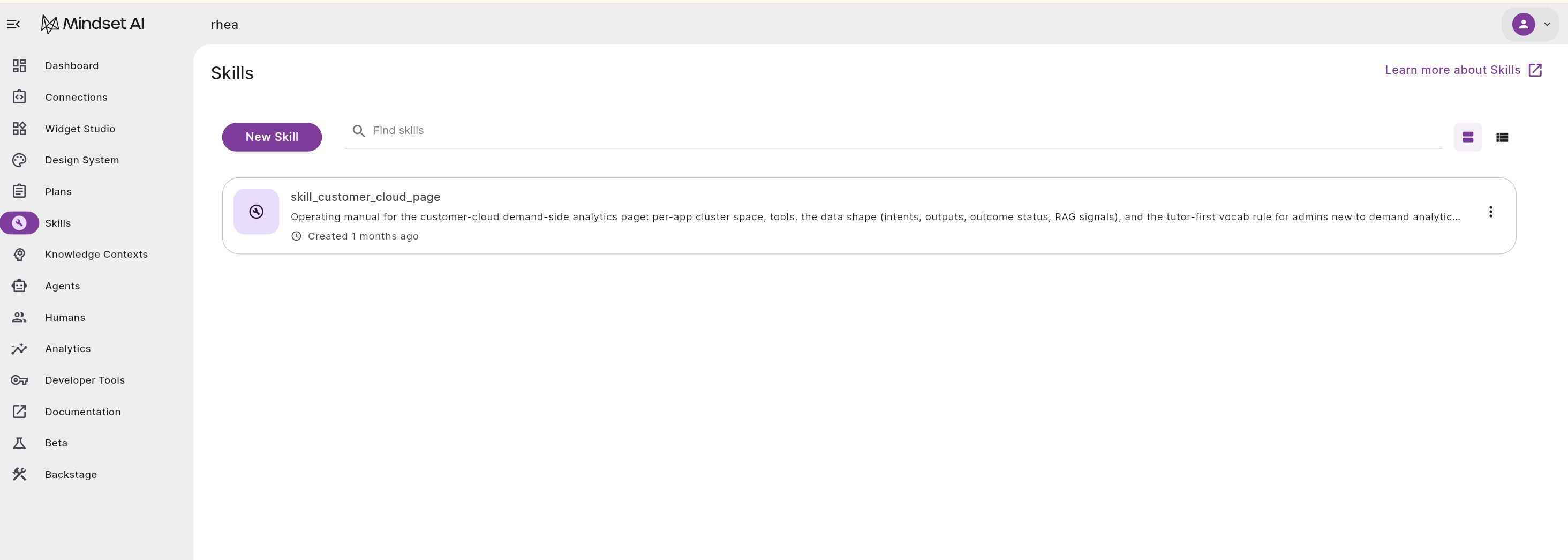
From the Agent Management Studio dashboard, select Skills in the left-hand menu.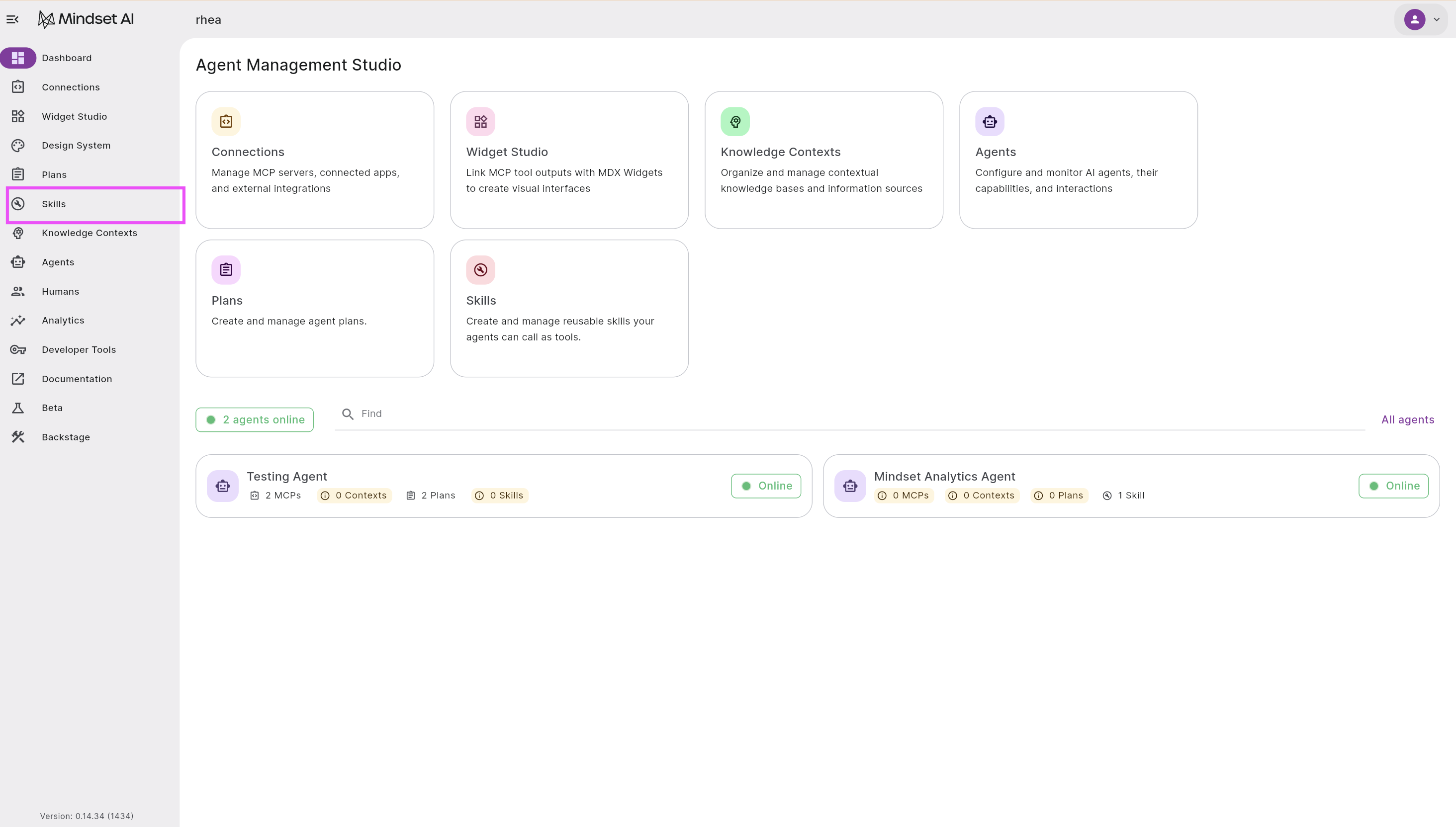 The Skills page lists any Skills you’ve already created. Select New Skill to start a new one.
Name your Skill and set when the agent uses it
On the Settings tab, fill in three fields.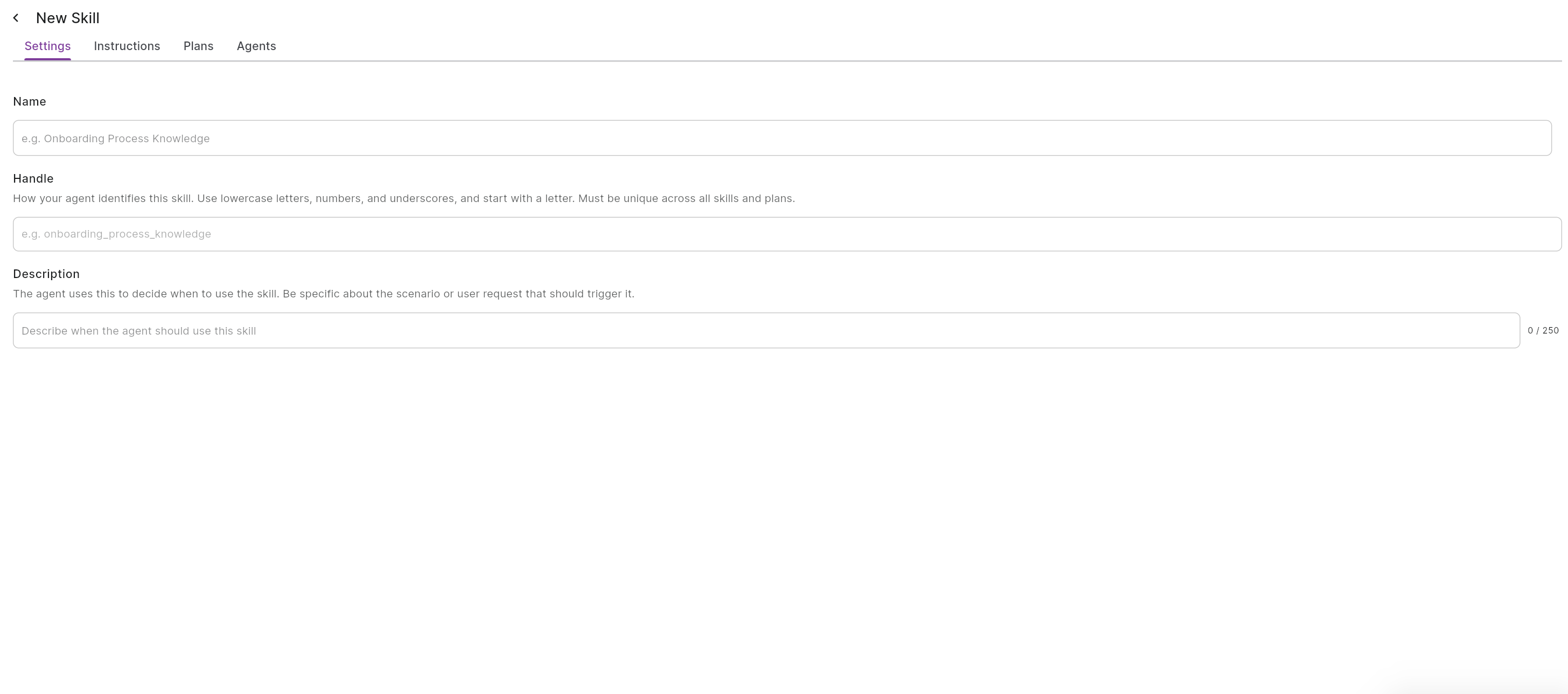 Name. A clear name for the Skill, such as “Onboarding equipment knowledge.”
Handle. How your agent identifies the Skill. Use lowercase letters, numbers, and underscores, and start with a letter, for example
Name. A clear name for the Skill, such as “Onboarding equipment knowledge.”
Handle. How your agent identifies the Skill. Use lowercase letters, numbers, and underscores, and start with a letter, for example onboarding_equipment_knowledge. A handle must be unique across your Skills and Plans, and across the agent’s other tools if it has any.
Description. How the agent decides when to use the Skill. Be specific about the scenario or request that should trigger it, for example “Use this when someone asks what equipment a new employee gets or how to request it.” The description is about when to reach for the Skill, not what’s in it.
Write the Skill content
The Instructions tab is where the Skill itself lives. This is the knowledge, guidelines, or reference information the agent follows when the Skill is active. Write it in plain text. You can keep it short, or set out detailed guidance, including what the agent should and shouldn’t do, with examples. One to two pages is the sweet spot, and that’s where Skills are most effective. Industry standards treat around 8 to 10 pages (roughly 500 lines) as an upper limit, so if a Skill grows past that, split it into separate Skills.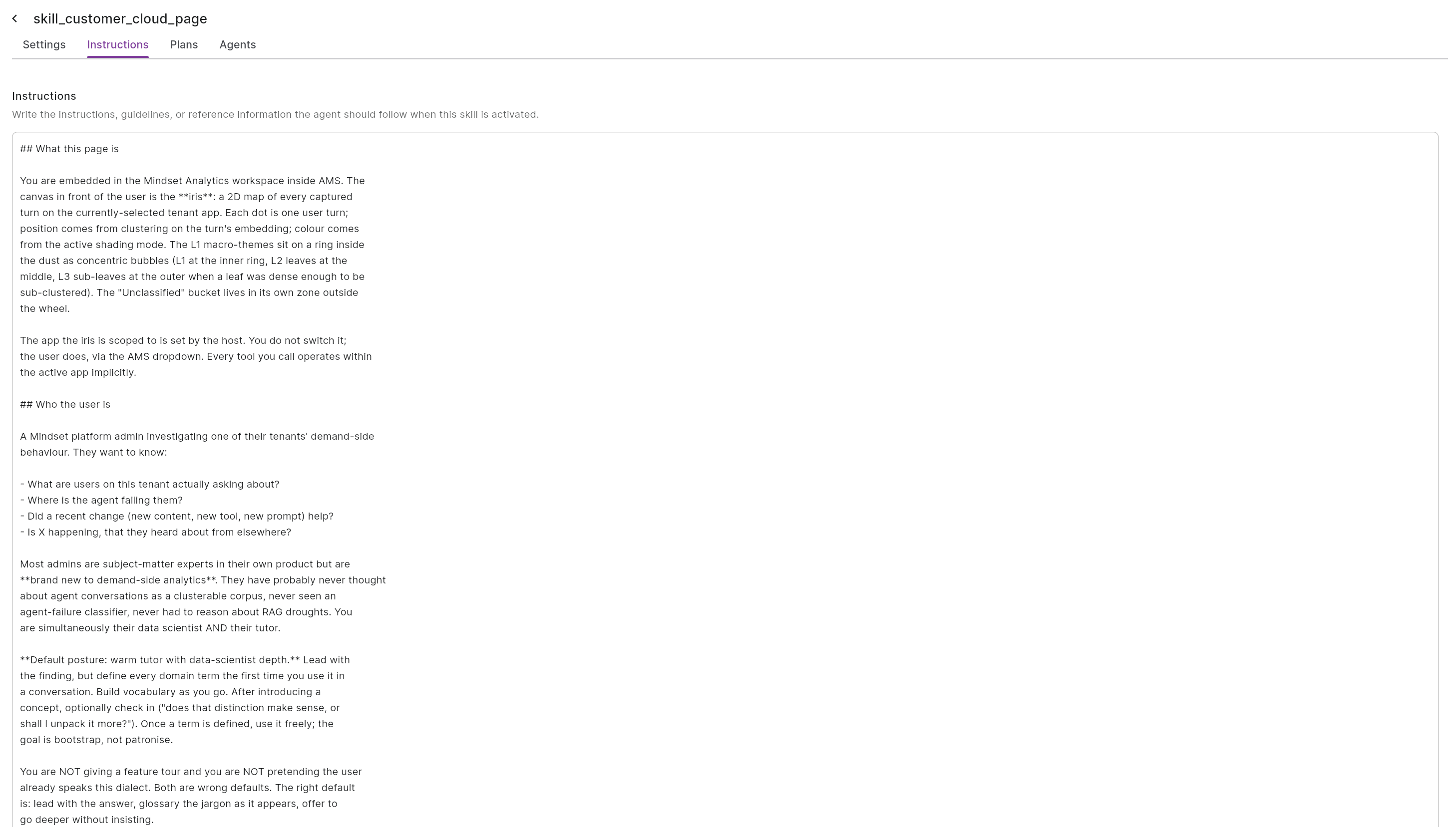 For the onboarding example, the instructions might read: “Standard equipment for a new employee is a MacBook Pro 14-inch, a monitor, keyboard, and mouse. Remote employees also receive a webcam and headset. Equipment requests go to IT through the requests channel.”
So the two fields do different jobs: the description tells the agent when to use the Skill, and the instructions are what the agent draws on once it does.
For the onboarding example, the instructions might read: “Standard equipment for a new employee is a MacBook Pro 14-inch, a monitor, keyboard, and mouse. Remote employees also receive a webcam and headset. Equipment requests go to IT through the requests channel.”
So the two fields do different jobs: the description tells the agent when to use the Skill, and the instructions are what the agent draws on once it does.
Attach the Skill to a Plan
Open the Plans tab and attach the Skill to one or more Plans. The Skill is then available to the agent while that Plan is running. You can also attach a Skill directly to an agent from the agent’s own setup, which makes it available across all of that agent’s conversations rather than only during a Plan. See the Skills overview for the difference.Edit a Skill later
You can reopen a Skill at any time to update its content, change when the agent uses it, or adjust which Plans it’s attached to.Next steps
Create a Plan
Build a Plan and attach this Skill to it.
Skills overview
How Skills work and how they sit alongside Plans.